Keypad Electronic Piano
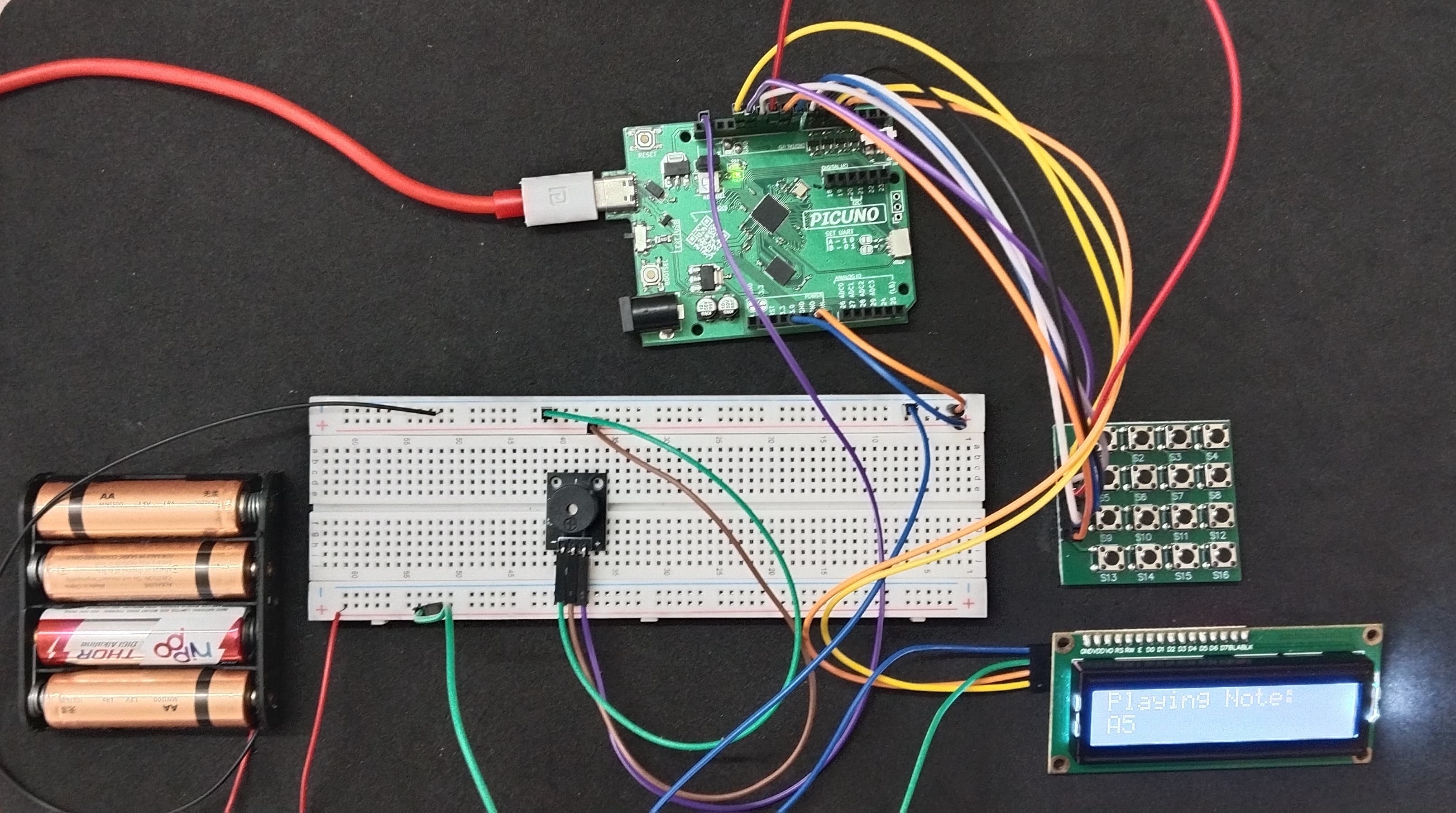
HARDWARE REQUIRED:
- PICUNO Microcontroller board
- 1 × 4x4 Button Matrix Module
- 1 × I2C LCD Display
- 1 × 4xAA Battery Pack (For external supply)
- 1 × Buzzer
- Jumper wires
- USB cable
DESCRIPTION:
This project turns the 4x4 keypad into a simple musical instrument. Each of the 16 buttons is mapped to a specific musical note in a higher octave for a clearer sound. When a key is pressed, its note is played on the buzzer, and the name of the note (e.g., "C5", "G#5") is displayed on the LCD screen, providing both audible and visual feedback.
CIRCUIT DIAGRAM:
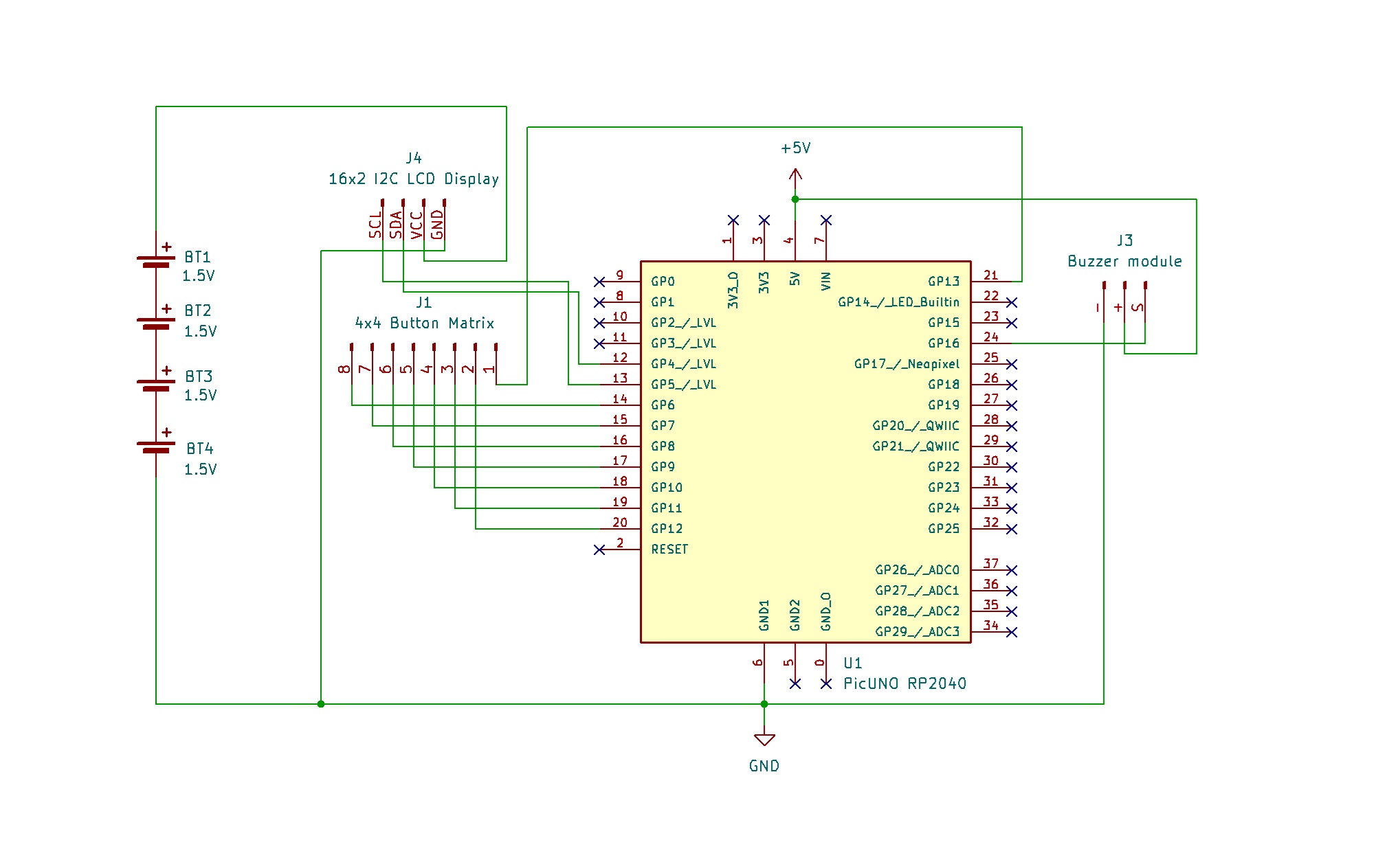
- Connect the LCD Module's GND pin to GND.
- Connect the LCD Module's VCC pin to the Positive (+) terminal of the 4xAA Battery Pack.
- Connect the LCD Module's SDA pin GPIO 4 (SDA Pin on PICUNO).
- Connect the LCD Module's SCL pin GPIO 5 (SCL Pin on PICUNO).
- Connect the negative terminal of the 4xAA Battery Pack to Common GND on breadboard.
- Connect the Row pins (5-8) to GPIO 6, 7, 8 and 9 respectively.
- Connect the Column pins (1-4) to GPIO 10, 11, 12 and 13 respectively.
- Connect the GND (-) pin to GND pin.
- Connect the VCC (+) pin to 5V.
- Connect the Signal (S) pin to GPIO 16.
SCHEMATIC:
I2C LCD Display:
LCD VCC → 4xAA Battery Pack (+)
LCD GND → GND
LCD SDA → GPIO 4 (Board SDA Pin)
LCD SCL → GPIO 5 (Board SCL Pin)
4x4 Button Matrix Module:
Pin 1 (Column 4) → GPIO 13
Pin 2 (Column 3) → GPIO 12
Pin 3 (Column 2) → GPIO 11
Pin 4 (Column 1) → GPIO 10
Pin 5 (Row 1) → GPIO 9
Pin 6 (Row 2) → GPIO 8
Pin 7 (Row 3) → GPIO 7
Pin 8 (Row 4) → GPIO 6
Buzzer Module:
VCC / (+) → 5V
GND / (-) → GND
Signal (S) → GPIO 16
Common Ground Connection:
4xAA Battery Pack (-) → PICUNO Board GND
CODE -- C:
#include <Wire.h>
#include <LiquidCrystal_I2C.h>
const int BUZZER_PIN = 16;
// --- Keypad Setup ---
const byte ROWS = 4;
const byte COLS = 4;
char keys[ROWS][COLS] = {
{'1','2','3','A'},
{'4','5','6','B'},
{'7','8','9','C'},
{'*','0','#','D'}
};
byte rowPins[ROWS] = {6, 7, 8, 9};
byte colPins[COLS] = {10, 11, 12, 13};
LiquidCrystal_I2C lcd(0x27, 16, 2);
// --- Note Frequencies in a Higher Octave (C5 to D#6) ---
const int NOTE_C5 = 523; const int NOTE_CS5 = 554; const int NOTE_D5 = 587; const int NOTE_DS5 = 622;
const int NOTE_E5 = 659; const int NOTE_F5 = 698; const int NOTE_FS5 = 740; const int NOTE_G5 = 784;
const int NOTE_GS5 = 831; const int NOTE_A5 = 880; const int NOTE_AS5 = 932; const int NOTE_B5 = 988;
const int NOTE_C6 = 1047; const int NOTE_CS6 = 1109; const int NOTE_D6 = 1175; const int NOTE_DS6 = 1245;
void setup() {
pinMode(BUZZER_PIN, OUTPUT);
for (byte r = 0; r < ROWS; r++) {
pinMode(rowPins[r], OUTPUT);
digitalWrite(rowPins[r], HIGH);
}
for (byte c = 0; c < COLS; c++) {
pinMode(colPins[c], INPUT_PULLUP);
}
lcd.init();
lcd.backlight();
lcd.setCursor(1, 0);
lcd.print("Keypad Piano");
}
void loop() {
char key = get_key();
if (key) {
playNote(key);
}
}
// --- Helper Functions ---
void playNote(char key) {
lcd.clear();
lcd.setCursor(0,0);
lcd.print("Playing Note:");
lcd.setCursor(0,1);
int noteDuration = 150; // milliseconds
switch (key) {
// First Row
case '1': tone(BUZZER_PIN, NOTE_C5, noteDuration); lcd.print("C5"); break;
case '2': tone(BUZZER_PIN, NOTE_CS5, noteDuration); lcd.print("C#5"); break;
case '3': tone(BUZZER_PIN, NOTE_D5, noteDuration); lcd.print("D5"); break;
case 'A': tone(BUZZER_PIN, NOTE_DS5, noteDuration); lcd.print("D#5"); break;
// Second Row
case '4': tone(BUZZER_PIN, NOTE_E5, noteDuration); lcd.print("E5"); break;
case '5': tone(BUZZER_PIN, NOTE_F5, noteDuration); lcd.print("F5"); break;
case '6': tone(BUZZER_PIN, NOTE_FS5, noteDuration); lcd.print("F#5"); break;
case 'B': tone(BUZZER_PIN, NOTE_G5, noteDuration); lcd.print("G5"); break;
// Third Row
case '7': tone(BUZZER_PIN, NOTE_GS5, noteDuration); lcd.print("G#5"); break;
case '8': tone(BUZZER_PIN, NOTE_A5, noteDuration); lcd.print("A5"); break;
case '9': tone(BUZZER_PIN, NOTE_AS5, noteDuration); lcd.print("A#5"); break;
case 'C': tone(BUZZER_PIN, NOTE_B5, noteDuration); lcd.print("B5"); break;
// Fourth Row
case '*': tone(BUZZER_PIN, NOTE_C6, noteDuration); lcd.print("C6"); break;
case '0': tone(BUZZER_PIN, NOTE_CS6, noteDuration); lcd.print("C#6"); break;
case '#': tone(BUZZER_PIN, NOTE_D6, noteDuration); lcd.print("D6"); break;
case 'D': tone(BUZZER_PIN, NOTE_DS6, noteDuration); lcd.print("D#6"); break;
}
}
char get_key() {
for (byte r = 0; r < ROWS; r++) {
digitalWrite(rowPins[r], LOW);
for (byte c = 0; c < COLS; c++) {
if (digitalRead(colPins[c]) == LOW) {
delay(50);
if (digitalRead(colPins[c]) == LOW) {
while (digitalRead(colPins[c]) == LOW) {}
digitalWrite(rowPins[r], HIGH);
return keys[r][c];
}
}
}
digitalWrite(rowPins[r], HIGH);
}
return '\\0';
}
#include <LiquidCrystal_I2C.h>
const int BUZZER_PIN = 16;
// --- Keypad Setup ---
const byte ROWS = 4;
const byte COLS = 4;
char keys[ROWS][COLS] = {
{'1','2','3','A'},
{'4','5','6','B'},
{'7','8','9','C'},
{'*','0','#','D'}
};
byte rowPins[ROWS] = {6, 7, 8, 9};
byte colPins[COLS] = {10, 11, 12, 13};
LiquidCrystal_I2C lcd(0x27, 16, 2);
// --- Note Frequencies in a Higher Octave (C5 to D#6) ---
const int NOTE_C5 = 523; const int NOTE_CS5 = 554; const int NOTE_D5 = 587; const int NOTE_DS5 = 622;
const int NOTE_E5 = 659; const int NOTE_F5 = 698; const int NOTE_FS5 = 740; const int NOTE_G5 = 784;
const int NOTE_GS5 = 831; const int NOTE_A5 = 880; const int NOTE_AS5 = 932; const int NOTE_B5 = 988;
const int NOTE_C6 = 1047; const int NOTE_CS6 = 1109; const int NOTE_D6 = 1175; const int NOTE_DS6 = 1245;
void setup() {
pinMode(BUZZER_PIN, OUTPUT);
for (byte r = 0; r < ROWS; r++) {
pinMode(rowPins[r], OUTPUT);
digitalWrite(rowPins[r], HIGH);
}
for (byte c = 0; c < COLS; c++) {
pinMode(colPins[c], INPUT_PULLUP);
}
lcd.init();
lcd.backlight();
lcd.setCursor(1, 0);
lcd.print("Keypad Piano");
}
void loop() {
char key = get_key();
if (key) {
playNote(key);
}
}
// --- Helper Functions ---
void playNote(char key) {
lcd.clear();
lcd.setCursor(0,0);
lcd.print("Playing Note:");
lcd.setCursor(0,1);
int noteDuration = 150; // milliseconds
switch (key) {
// First Row
case '1': tone(BUZZER_PIN, NOTE_C5, noteDuration); lcd.print("C5"); break;
case '2': tone(BUZZER_PIN, NOTE_CS5, noteDuration); lcd.print("C#5"); break;
case '3': tone(BUZZER_PIN, NOTE_D5, noteDuration); lcd.print("D5"); break;
case 'A': tone(BUZZER_PIN, NOTE_DS5, noteDuration); lcd.print("D#5"); break;
// Second Row
case '4': tone(BUZZER_PIN, NOTE_E5, noteDuration); lcd.print("E5"); break;
case '5': tone(BUZZER_PIN, NOTE_F5, noteDuration); lcd.print("F5"); break;
case '6': tone(BUZZER_PIN, NOTE_FS5, noteDuration); lcd.print("F#5"); break;
case 'B': tone(BUZZER_PIN, NOTE_G5, noteDuration); lcd.print("G5"); break;
// Third Row
case '7': tone(BUZZER_PIN, NOTE_GS5, noteDuration); lcd.print("G#5"); break;
case '8': tone(BUZZER_PIN, NOTE_A5, noteDuration); lcd.print("A5"); break;
case '9': tone(BUZZER_PIN, NOTE_AS5, noteDuration); lcd.print("A#5"); break;
case 'C': tone(BUZZER_PIN, NOTE_B5, noteDuration); lcd.print("B5"); break;
// Fourth Row
case '*': tone(BUZZER_PIN, NOTE_C6, noteDuration); lcd.print("C6"); break;
case '0': tone(BUZZER_PIN, NOTE_CS6, noteDuration); lcd.print("C#6"); break;
case '#': tone(BUZZER_PIN, NOTE_D6, noteDuration); lcd.print("D6"); break;
case 'D': tone(BUZZER_PIN, NOTE_DS6, noteDuration); lcd.print("D#6"); break;
}
}
char get_key() {
for (byte r = 0; r < ROWS; r++) {
digitalWrite(rowPins[r], LOW);
for (byte c = 0; c < COLS; c++) {
if (digitalRead(colPins[c]) == LOW) {
delay(50);
if (digitalRead(colPins[c]) == LOW) {
while (digitalRead(colPins[c]) == LOW) {}
digitalWrite(rowPins[r], HIGH);
return keys[r][c];
}
}
}
digitalWrite(rowPins[r], HIGH);
}
return '\\0';
}
Note Frequencies - Constants that store the specific frequencies (in Hertz) for each musical note, making the code readable.
get_key() function - Manually scans the keypad's rows and columns to detect a single, complete button press without needing an external library.
pinMode(..., INPUT_PULLUP) - Activates an internal resistor on the Arduino to keep the column pins stable and allow for reliable key press detection.
Key Release Logic (while loop) - After a key press is detected, this loop waits for the button to be physically released, ensuring one press results in only one note.
switch (key) statement - An efficient way to check which key was pressed and then run the specific code to play the correct note and display its name.
tone(pin, frequency, duration) - Generates a sound wave on the buzzer pin at a specific frequency for a set duration, allowing it to play musical notes.
get_key() function - Manually scans the keypad's rows and columns to detect a single, complete button press without needing an external library.
pinMode(..., INPUT_PULLUP) - Activates an internal resistor on the Arduino to keep the column pins stable and allow for reliable key press detection.
Key Release Logic (while loop) - After a key press is detected, this loop waits for the button to be physically released, ensuring one press results in only one note.
switch (key) statement - An efficient way to check which key was pressed and then run the specific code to play the correct note and display its name.
tone(pin, frequency, duration) - Generates a sound wave on the buzzer pin at a specific frequency for a set duration, allowing it to play musical notes.
CODE -- PYTHON:
from machine import Pin, PWM, I2C
from time import sleep_ms
from i2c_lcd import I2cLcd
BUZZER_PIN = 16
# --- Keypad Setup ---
keypad_map = [
['1', '2', '3', 'A'],
['4', '5', '6', 'B'],
['7', '8', '9', 'C'],
['*', '0', '#', 'D']
]
row_pins = [Pin(pin, Pin.OUT) for pin in [6, 7, 8, 9]]
col_pins = [Pin(pin, Pin.IN, Pin.PULL_DOWN) for pin in [10, 11, 12, 13]]
I2C_ADDR = 0x27
i2c = I2C(0, scl=Pin(5), sda=Pin(4))
lcd = I2cLcd(i2c, I2C_ADDR, 2, 16)
buzzer = PWM(Pin(BUZZER_PIN))
notes = {
'1': ("C5 ", 523), '2': ("C#5", 554), '3': ("D5 ", 587), 'A': ("D#5", 622),
'4': ("E5 ", 659), '5': ("F5 ", 698), '6': ("F#5", 740), 'B': ("G5 ", 784),
'7': ("G#5", 831), '8': ("A5 ", 880), '9': ("A#5", 932), 'C': ("B5 ", 988),
'*': ("C6 ", 1047),'0': ("C#6", 1109),'#': ("D6 ", 1175),'D': ("D#6", 1245)
}
# --- Helper Functions ---
def play_tone(freq, duration_ms):
if freq > 0:
buzzer.freq(freq)
buzzer.duty_u16(32768)
sleep_ms(duration_ms)
buzzer.duty_u16(0) # Turn buzzer off
def read_keypad():
for r, row_pin in enumerate(row_pins):
row_pin.high()
for c, col_pin in enumerate(col_pins):
if col_pin.value() == 1:
sleep_ms(50)
if col_pin.value() == 1:
while col_pin.value() == 1: pass
row_pin.low()
return keypad_map[r][c]
row_pin.low()
return None
# --- Main Program ---
lcd.putstr("Keypad Piano")
while True:
key = read_keypad()
if key:
if key in notes:
# Look up the note name and frequency from the dictionary
note_name, frequency = notes[key]
# Display the note on the LCD
lcd.clear()
lcd.putstr("Note:")
lcd.move_to(0, 1)
lcd.putstr(note_name)
# Play the note on the buzzer
play_tone(frequency, 200) # Play for 200ms
from time import sleep_ms
from i2c_lcd import I2cLcd
BUZZER_PIN = 16
# --- Keypad Setup ---
keypad_map = [
['1', '2', '3', 'A'],
['4', '5', '6', 'B'],
['7', '8', '9', 'C'],
['*', '0', '#', 'D']
]
row_pins = [Pin(pin, Pin.OUT) for pin in [6, 7, 8, 9]]
col_pins = [Pin(pin, Pin.IN, Pin.PULL_DOWN) for pin in [10, 11, 12, 13]]
I2C_ADDR = 0x27
i2c = I2C(0, scl=Pin(5), sda=Pin(4))
lcd = I2cLcd(i2c, I2C_ADDR, 2, 16)
buzzer = PWM(Pin(BUZZER_PIN))
notes = {
'1': ("C5 ", 523), '2': ("C#5", 554), '3': ("D5 ", 587), 'A': ("D#5", 622),
'4': ("E5 ", 659), '5': ("F5 ", 698), '6': ("F#5", 740), 'B': ("G5 ", 784),
'7': ("G#5", 831), '8': ("A5 ", 880), '9': ("A#5", 932), 'C': ("B5 ", 988),
'*': ("C6 ", 1047),'0': ("C#6", 1109),'#': ("D6 ", 1175),'D': ("D#6", 1245)
}
# --- Helper Functions ---
def play_tone(freq, duration_ms):
if freq > 0:
buzzer.freq(freq)
buzzer.duty_u16(32768)
sleep_ms(duration_ms)
buzzer.duty_u16(0) # Turn buzzer off
def read_keypad():
for r, row_pin in enumerate(row_pins):
row_pin.high()
for c, col_pin in enumerate(col_pins):
if col_pin.value() == 1:
sleep_ms(50)
if col_pin.value() == 1:
while col_pin.value() == 1: pass
row_pin.low()
return keypad_map[r][c]
row_pin.low()
return None
# --- Main Program ---
lcd.putstr("Keypad Piano")
while True:
key = read_keypad()
if key:
if key in notes:
# Look up the note name and frequency from the dictionary
note_name, frequency = notes[key]
# Display the note on the LCD
lcd.clear()
lcd.putstr("Note:")
lcd.move_to(0, 1)
lcd.putstr(note_name)
# Play the note on the buzzer
play_tone(frequency, 200) # Play for 200ms
notes dictionary - This is the core of the project. A Python dictionary is used to cleanly map each key character to its corresponding Note Name and Frequency. This is much neater than a long if/elif/else chain.
Higher Octave - The frequencies defined in the notes dictionary are for the 5th and 6th octaves (e.g., C5, C6). This makes the notes higher-pitched, which our ears perceive as louder and clearer on a small buzzer.
play_tone() function - This helper function takes a frequency and duration, making it easy to play any note. It uses PWM to generate the correct sound wave.
if key in notes: - This line efficiently checks if the pressed key exists as a key in our notes dictionary before trying to access it, preventing errors.
note_name, frequency = notes[key] - This is a clean way to unpack the data (the tuple) associated with a key from the dictionary into two separate variables.
Higher Octave - The frequencies defined in the notes dictionary are for the 5th and 6th octaves (e.g., C5, C6). This makes the notes higher-pitched, which our ears perceive as louder and clearer on a small buzzer.
play_tone() function - This helper function takes a frequency and duration, making it easy to play any note. It uses PWM to generate the correct sound wave.
if key in notes: - This line efficiently checks if the pressed key exists as a key in our notes dictionary before trying to access it, preventing errors.
note_name, frequency = notes[key] - This is a clean way to unpack the data (the tuple) associated with a key from the dictionary into two separate variables.