Scrolling Text Marquee On I2C LCD Display

HARDWARE REQUIRED:
- PICUNO Microcontroller board
- 1 × 16x2 I2C LCD Display
- Jumper wires
- USB cable
- 9V Battery with a snap connector (to power the board via the DC Jack)
DESCRIPTION:
This project creates a continuous, looping "news ticker" style scroll on a 16x2 LCD screen. A long text message, which is wider than the 16-character display, is programmed to slide smoothly across the screen from right to left. By adding blank spaces to the beginning of the text, the message appears to scroll onto the screen, and the main loop ensures the animation repeats seamlessly after it finishes.
LIBRARIES REQUIRED:
For C / Arduino IDE:
- Wire.h: Manages I2C communication (usually included by default).
- LiquidCrystal_I2C.h: The driver library for the I2C LCD module.
- i2c_lcd.py: The custom library file saved to the PICUNO board.
- The code also uses the built-in machine and time modules.
CIRCUIT DIAGRAM:
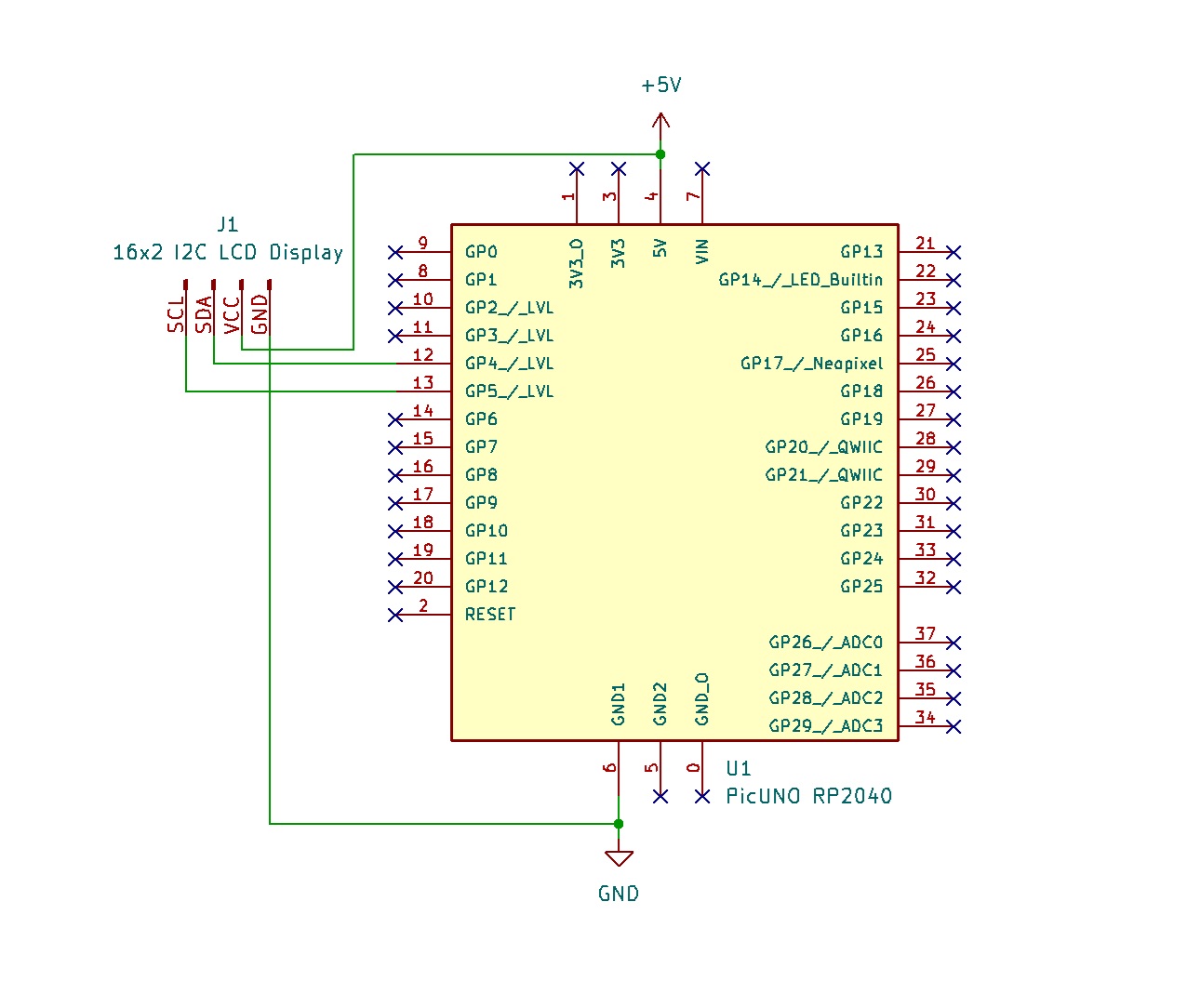
NOTE:
For best performance, power the board by connecting a 9V battery to the DC jack and switch the power from USB to external in the Board. This provides a more stable 5V supply for the LCD backlight than a standard USB port.
- Connect the LCD Module's GND pin to a GND pin on board.
- Connect the LCD Module's VCC pin to the 5V pin on board.
- Connect the LCD Module's SDA pin GPIO 4 (SDA Pin on PICUNO).
- Connect the LCD Module's SCL pin GPIO 5 (SCL Pin on PICUNO).
SCHEMATIC:
LCD VCC → 5V
LCD GND → GND
LCD SDA → GPIO 4 (Board SDA Pin)
LCD SCL → GPIO 5 (Board SCL Pin)
CODE -- C:
#include <Wire.h>
#include <LiquidCrystal_I2C.h>
LiquidCrystal_I2C lcd(0x27, 16, 2);
String message = " HELLO! Welcome to Atrivatech Private Limited "; // Extra spaces at the end for smooth exit
int messageLength = message.length();
void setup() {
lcd.init();
lcd.backlight();
}
void loop() {
for (int i = 0; i < messageLength; i++) {
lcd.clear();
String sub = message.substring(i, i + 16);
lcd.setCursor(0, 0);
lcd.print(sub);
delay(350);
}
}
#include <LiquidCrystal_I2C.h>
LiquidCrystal_I2C lcd(0x27, 16, 2);
String message = " HELLO! Welcome to Atrivatech Private Limited "; // Extra spaces at the end for smooth exit
int messageLength = message.length();
void setup() {
lcd.init();
lcd.backlight();
}
void loop() {
for (int i = 0; i < messageLength; i++) {
lcd.clear();
String sub = message.substring(i, i + 16);
lcd.setCursor(0, 0);
lcd.print(sub);
delay(350);
}
}
#include <LiquidCrystal_I2C.h> - Includes the library to control the LCD.
LiquidCrystal_I2C lcd(0x27, 16, 2); - Creates the LCD object, specifying its I2C address and dimensions.
String message = " ... "; - Defines the full message. The blank spaces at the beginning are essential for the text to slide smoothly onto the screen.
String sub = message.substring(i, i + 16); - This is the core of the animation. It extracts a 16-character "slice" from the main message to display.
delay(350); - This pause controls how fast the text scrolls.
LiquidCrystal_I2C lcd(0x27, 16, 2); - Creates the LCD object, specifying its I2C address and dimensions.
String message = " ... "; - Defines the full message. The blank spaces at the beginning are essential for the text to slide smoothly onto the screen.
String sub = message.substring(i, i + 16); - This is the core of the animation. It extracts a 16-character "slice" from the main message to display.
delay(350); - This pause controls how fast the text scrolls.
CODE -- PYTHON:
from machine import Pin, I2C
from i2c_lcd import I2cLcd
import time
i2c = I2C(0, scl=Pin(5), sda=Pin(4))
lcd = I2cLcd(i2c, 0x27, 2, 16)
# The spaces at the beginning make the text scroll in smoothly from the right
message = " HELLO! Welcome to Atrivatech Private Limited "
while True:
for i in range(len(message) - 15):
text_to_display = message[i : i + 16]
lcd.clear()
lcd.putstr(text_to_display)
time.sleep_ms(350) # Controls scroll speed
from i2c_lcd import I2cLcd
import time
i2c = I2C(0, scl=Pin(5), sda=Pin(4))
lcd = I2cLcd(i2c, 0x27, 2, 16)
# The spaces at the beginning make the text scroll in smoothly from the right
message = " HELLO! Welcome to Atrivatech Private Limited "
while True:
for i in range(len(message) - 15):
text_to_display = message[i : i + 16]
lcd.clear()
lcd.putstr(text_to_display)
time.sleep_ms(350) # Controls scroll speed
from i2c_lcd import I2cLcd - Imports the necessary class from the library file saved on the board.
lcd = I2cLcd(...) - Creates the LCD object with its I2C address and size.
message = " ... " - Defines the long message with padding spaces for the smooth scrolling effect.
text_to_display = message[i : i + 16] - This is Python's "slicing" syntax. It grabs a 16-character piece of the main message to be displayed.
lcd.putstr() - This command prints the 16-character string slice to the LCD.
lcd = I2cLcd(...) - Creates the LCD object with its I2C address and size.
message = " ... " - Defines the long message with padding spaces for the smooth scrolling effect.
text_to_display = message[i : i + 16] - This is Python's "slicing" syntax. It grabs a 16-character piece of the main message to be displayed.
lcd.putstr() - This command prints the 16-character string slice to the LCD.